
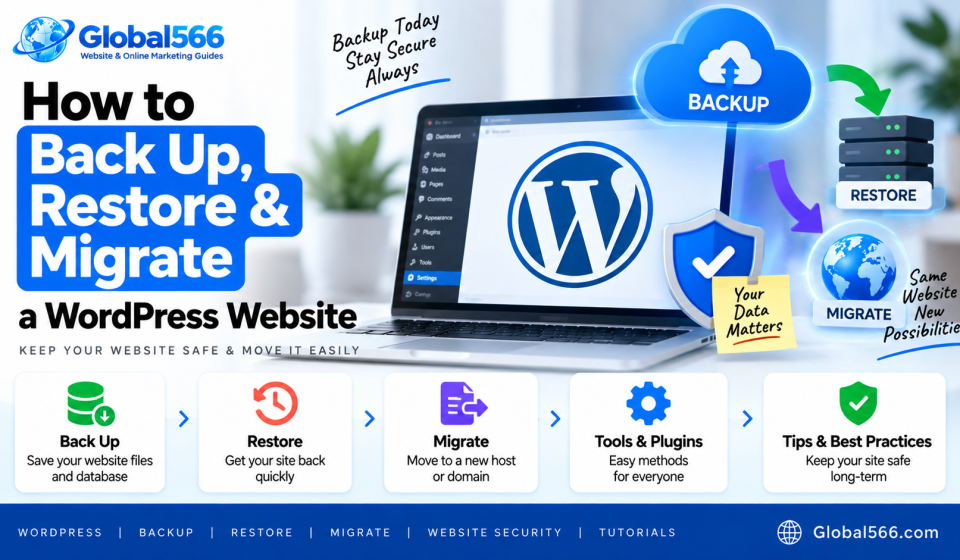

A WordPress backup gives you a copy of your website that you can use when something goes wrong.
You might need that copy after a bad plugin update, a server problem, a hacked website, or before moving your site to a new hosting company.
You can handle all 3 jobs with a WordPress backup plugin: backup, restore, and migration.
What does a WordPress backup include?
A complete WordPress backup has 2 main parts:
- WordPress files
- WordPress database
Your files include themes, plugins, images, and other website files.
The database contains your posts, pages, users, settings, comments, WooCommerce orders, and other site information.
You need both if you want to rebuild the whole website.
How to back up a WordPress website
The easiest way is to use a WordPress backup plugin.
Go to:
Plugins → Add New Plugin
Search for a backup plugin such as UpdraftPlus.
Install and activate it.
Then open the plugin’s settings and create a backup.
Depending on the plugin, you can choose to back up:
Plugins
Themes
Uploads
Other WordPress files
Database
For a complete website backup, select the database and your WordPress files.
Where should you store the backup?
Don’t keep your only backup inside the same WordPress hosting account.
If the hosting account goes down, your backup can disappear with it.
Save copies somewhere separate, such as Google Drive, Dropbox, Amazon S3, or another storage service supported by your backup plugin.
You can also download a backup to your computer.
For a small personal website, keeping several recent backups is usually enough.
For a store, I’d keep backups more frequently because orders and customer data change regularly.
Schedule automatic WordPress backups
You can schedule backups instead of creating them manually every time.
In your backup plugin settings, look for the scheduled backup options.
For example:
Files: Weekly
Database: Daily
The right schedule depends on how frequently your website changes.
A blog that gets 1 new post per week doesn’t need the same backup frequency as a WooCommerce store receiving 50 orders per day.
How to restore a WordPress website
Suppose a plugin update breaks your website.
You’ve got a backup. Good.
Open your WordPress backup plugin and find the restore option.
With UpdraftPlus, you’ll find the backup files in its backup section.
Choose the backup you want to restore.
Select the parts you want to restore, such as:
Plugins
Themes
Uploads
Database
Start the restoration process and wait for it to finish.
Don’t close the browser halfway through a large restoration.
Once it’s finished, open your website and test the important pages.
Check your homepage, posts, login page, forms, images, and WooCommerce checkout if you run a store.
Restore WordPress from a backup manually
You can also restore a WordPress website without a backup plugin.
You’ll need:
- WordPress files
- Database backup
- Database username
- Database password
- Database server details
Upload your WordPress files to the server using your hosting file manager or FTP.
Then create or select a MySQL database.
Import your database backup using a tool such as phpMyAdmin.
After that, open your WordPress wp-config.php file and check the database settings:
define( 'DB_NAME', 'database_name' );
define( 'DB_USER', 'database_user' );
define( 'DB_PASSWORD', 'database_password' );
define( 'DB_HOST', 'localhost' );
The exact database values depend on your hosting provider.
Once the files and database are connected correctly, open your website.
If the domain or URL has changed, you’ll also need to update the WordPress site URL and any old URLs stored in the database.
How to migrate a WordPress website
A WordPress migration means moving your website from one server or domain to another.
A common example is moving:
oldhost.com → newhost.com
The website itself stays the same. You’re moving its files and database to a different location.
A migration plugin can handle much of this work for you.
Plugins such as Duplicator can create a package containing your WordPress website and database.
Install the migration plugin on your existing website and create a backup or migration package.
Download the required files.
Then prepare your new hosting account.
Move WordPress to new hosting
First, set up your new hosting account.
Create the website and database if your hosting company doesn’t do this automatically.
Upload the migration files to the new server.
Follow the migration plugin’s installation steps to import the website.
Once the migration finishes, check your new website before changing your domain’s DNS records.
Visit the homepage.
Open several posts and pages.
Check your images.
Test your login.
Submit a contact form.
If it’s a WooCommerce store, place a test order.
You want to catch problems while the old website is still running.
How to migrate WordPress to a new domain
Moving from:
oldsite.com
to:
newsite.com
needs a few extra steps.
Move the WordPress files and database to the new hosting account.
Then update the WordPress URL.
You can check it from:
Settings → General
Update:
WordPress Address (URL)
Site Address (URL)
If the old domain appears throughout your database, you also need to replace the old URLs with the new ones.
Don’t run a basic search-and-replace on the database without checking how your plugin handles serialized data. A proper WordPress migration plugin can handle this safely.
Update DNS after migration
Once the new website works correctly, point your domain to the new hosting server.
Your hosting company will give you the required DNS records or nameservers.
DNS changes can take some time to reach different networks.
Keep the old hosting account active until you’ve confirmed that the new website works properly.
Check your website after migration
Run through the site like a normal visitor.
Check:
- Homepage
- Menu links
- Images
- Blog posts
- Contact forms
- Login
- SSL certificate
- Plugins
- Theme
- Search
- WooCommerce checkout
- Payment gateway
- Email notifications
Also open the site on your phone.
If you use Google Analytics, Meta Pixel, Google Search Console, or other tracking tools, check those too.
A migration can change URLs, DNS settings, caching, or plugin behavior, so don’t assume everything survived just because the homepage loads.
How often should you back up WordPress?
Your backup schedule should match how much content you can afford to lose.
For a simple blog, weekly file backups and more frequent database backups can work.
For an ecommerce website, daily backups are a sensible starting point, with more frequent backups if you process many orders.
And keep multiple backup copies.
A single backup sitting on the same server as your website isn’t much help when that server decides to have a terrible Tuesday.